
How email works with your domain
Want email from NG Domain instead? Business email sets up mailboxes and these records for you. See Getting Started. This guide is for connecting another provider.
With another provider, your email provider hosts them: Google Workspace, Microsoft 365, Zoho Mail or any other. Your domain's DNS records tell the rest of the internet which provider receives mail for you@yourdomain.ng, and which servers may send mail as you. Connecting a provider means copying a few records from them into NG Domain:
| Record | What it does |
|---|---|
| TXT (verification) | Proves to the provider that you own the domain |
| MX | Sends incoming mail to the provider's servers |
TXT (SPF), name @ |
Lists the servers allowed to send mail as your domain |
| TXT or CNAME (DKIM) | Publishes the key your provider signs outgoing mail with |
TXT (DMARC), name _dmarc |
Tells other servers what to do with mail that fails SPF or DKIM |
These steps assume your domain uses NG Domain DNS. If it uses Cloudflare or another provider's nameservers, add the same records there instead. See Changing Nameservers.
1. Sign up and add your domain
Sign up with your email provider and add your domain when it asks. The provider then shows the records to add. Keep that page open.
2. Verify ownership with a TXT record
- In your NG Domain dashboard, open the domain and go to the DNS tab. You add records in the DNS Records card.
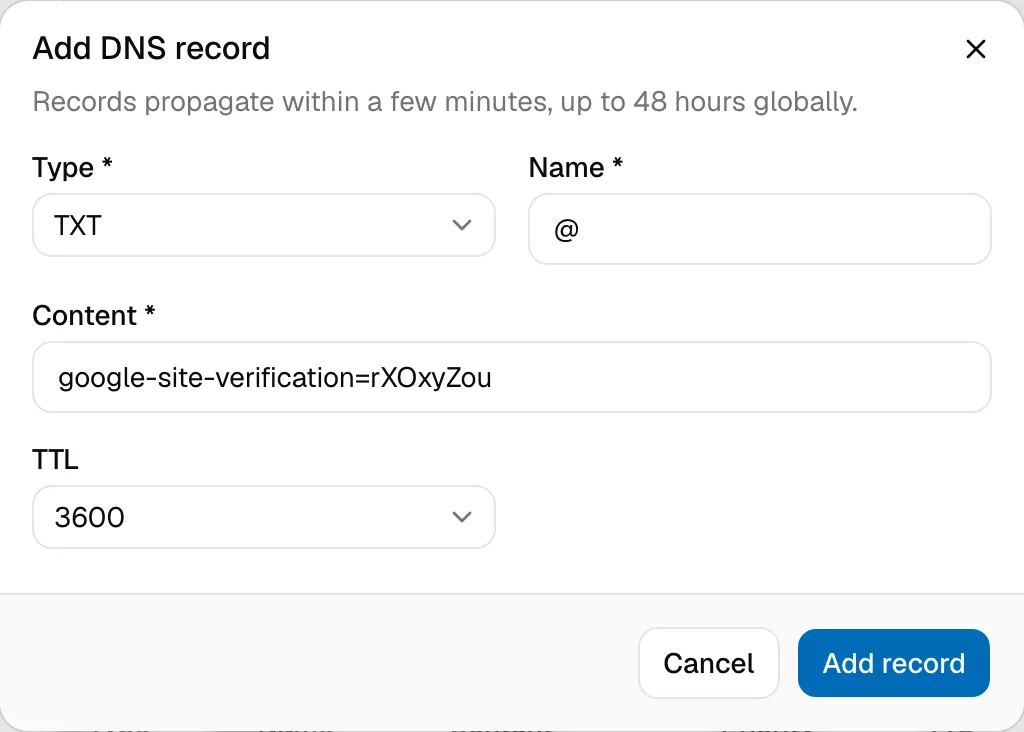
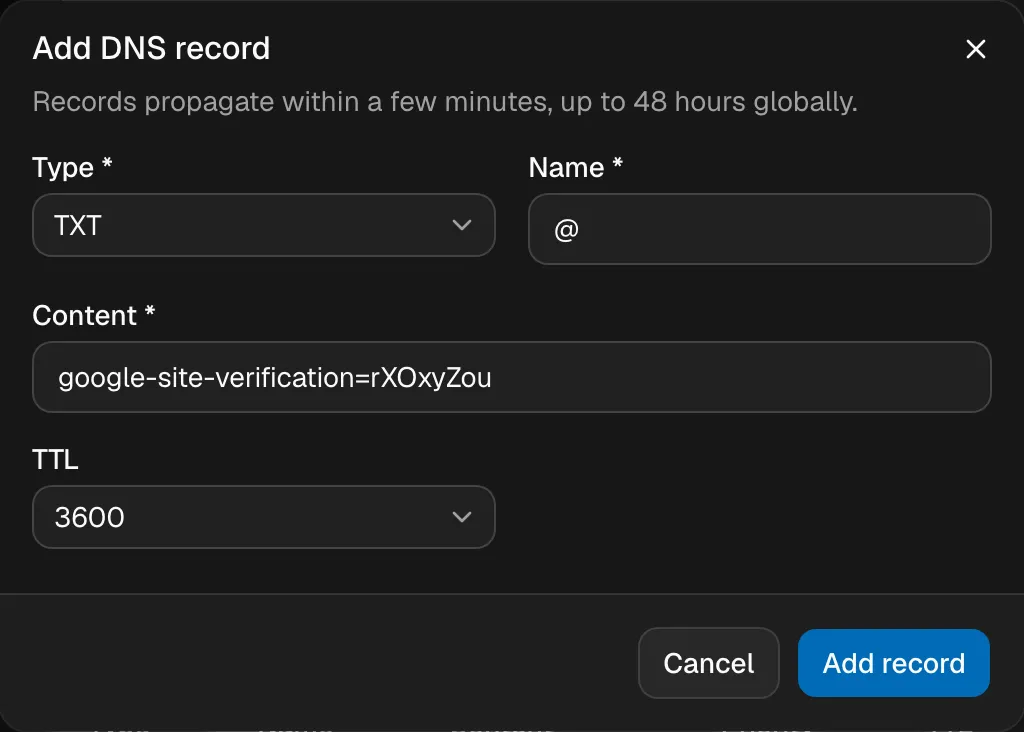
- Click Add record and set Type to TXT.
- Set Name to what the provider says, usually
@. - Paste the provider's value into Content exactly as given, for example
google-site-verification=…. - Click Add record, then go back to the provider and click verify.
New records usually show up within minutes. If verification fails, wait 15 minutes and try again.
3. Point your mail at the provider with MX records
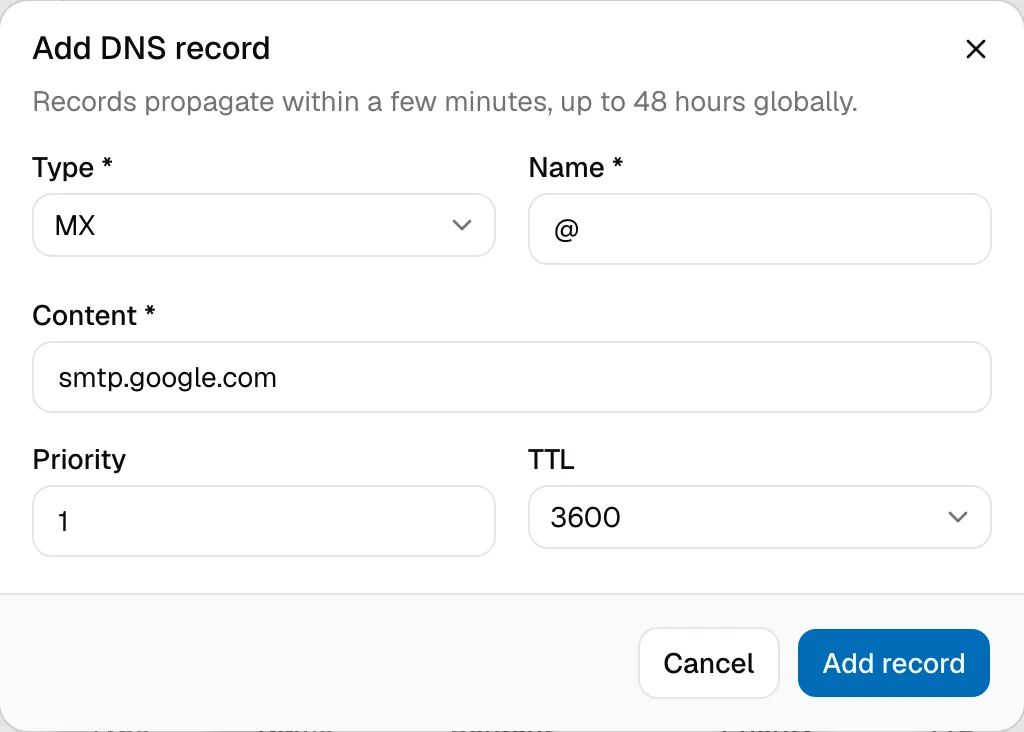
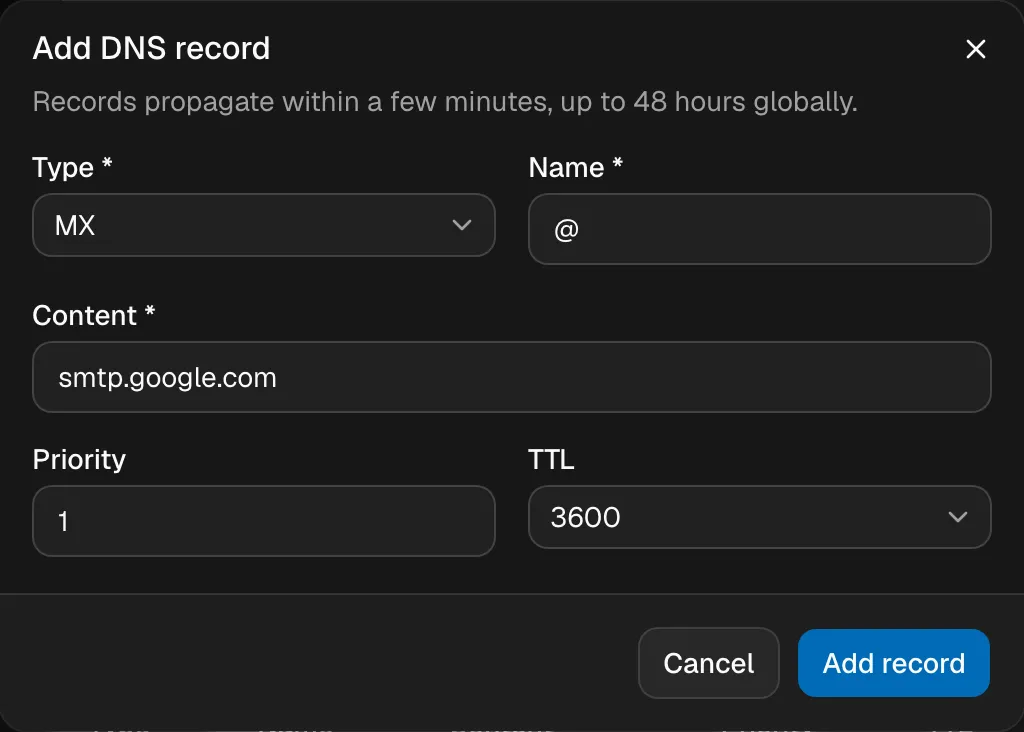
- Click Add record and set Type to MX.
- Set Name to
@. - Enter the mail server's hostname in Content and its number in Priority.
- Click Add record. Repeat for each MX record the provider lists.
Typical values:
| Provider | Content | Priority |
|---|---|---|
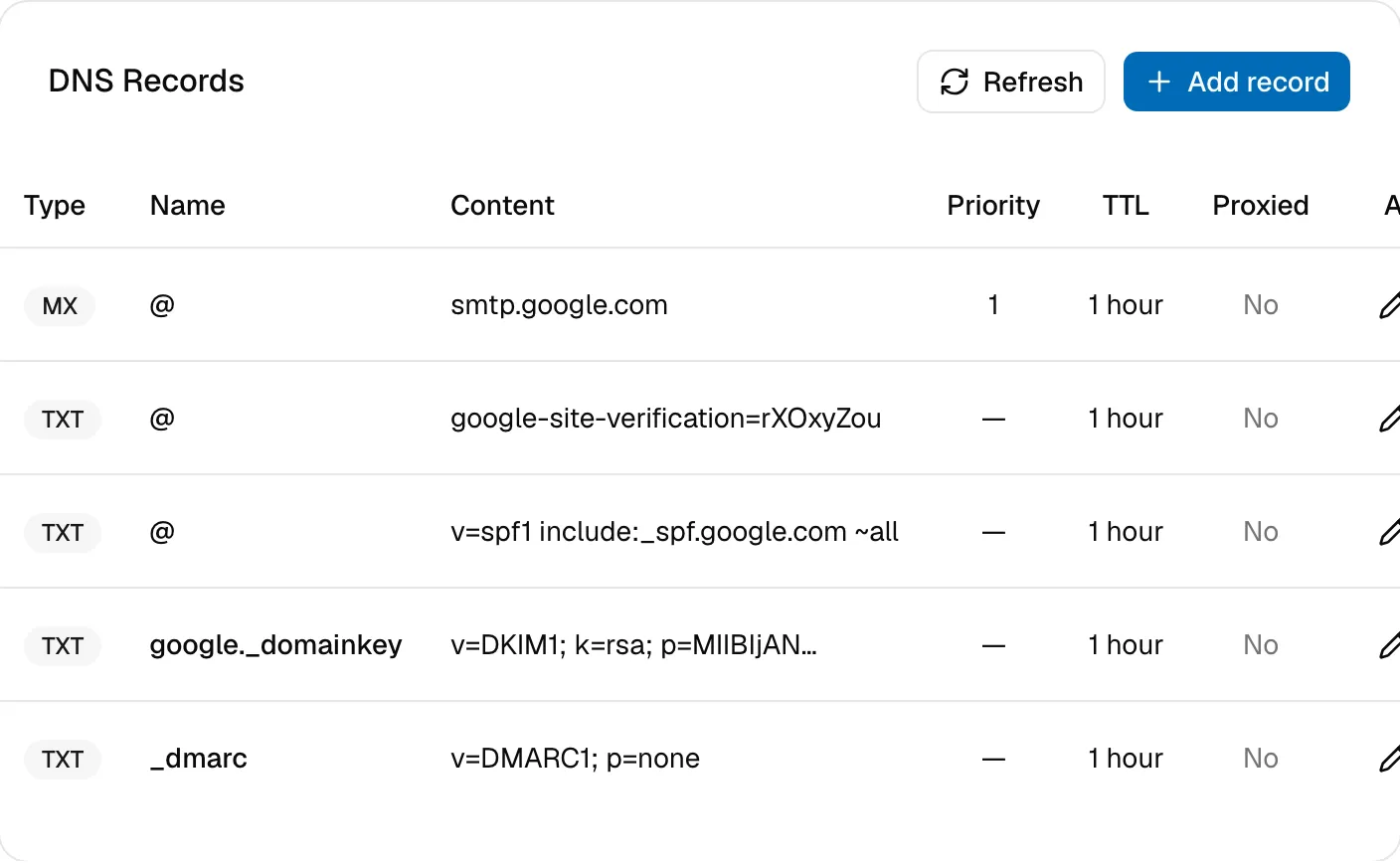
| Google Workspace | smtp.google.com |
1 |
| Microsoft 365 | yourdomain-com-ng.mail.protection.outlook.com, shown in your Microsoft 365 admin centre |
0 |
| Zoho Mail | mx.zoho.com, mx2.zoho.com, mx3.zoho.com |
10, 20, 50 |
Always copy the values from your provider's setup page. They can differ by account or region. The server with the lowest Priority number is tried first.
Delete any old MX records from a previous provider. Mail goes to the old provider for as long as they remain.
4. Add SPF, DKIM and DMARC
These records keep your mail out of spam folders and stop others sending mail that pretends to be from you. Add each as a TXT record, unless your provider says CNAME:
- SPF: name
@, content such asv=spf1 include:_spf.google.com ~all. A domain can only have one SPF record. If you use two services that send mail, such as Google Workspace and a newsletter tool, combine theirinclude:parts into one record. - DKIM: the name and value come from your provider's admin console, for example name
google._domainkey. - DMARC: name
_dmarc, content such asv=DMARC1; p=none; rua=mailto:you@yourdomain.ng. Start withp=noneto monitor, then tighten it toquarantineorrejectonce your mail passes.
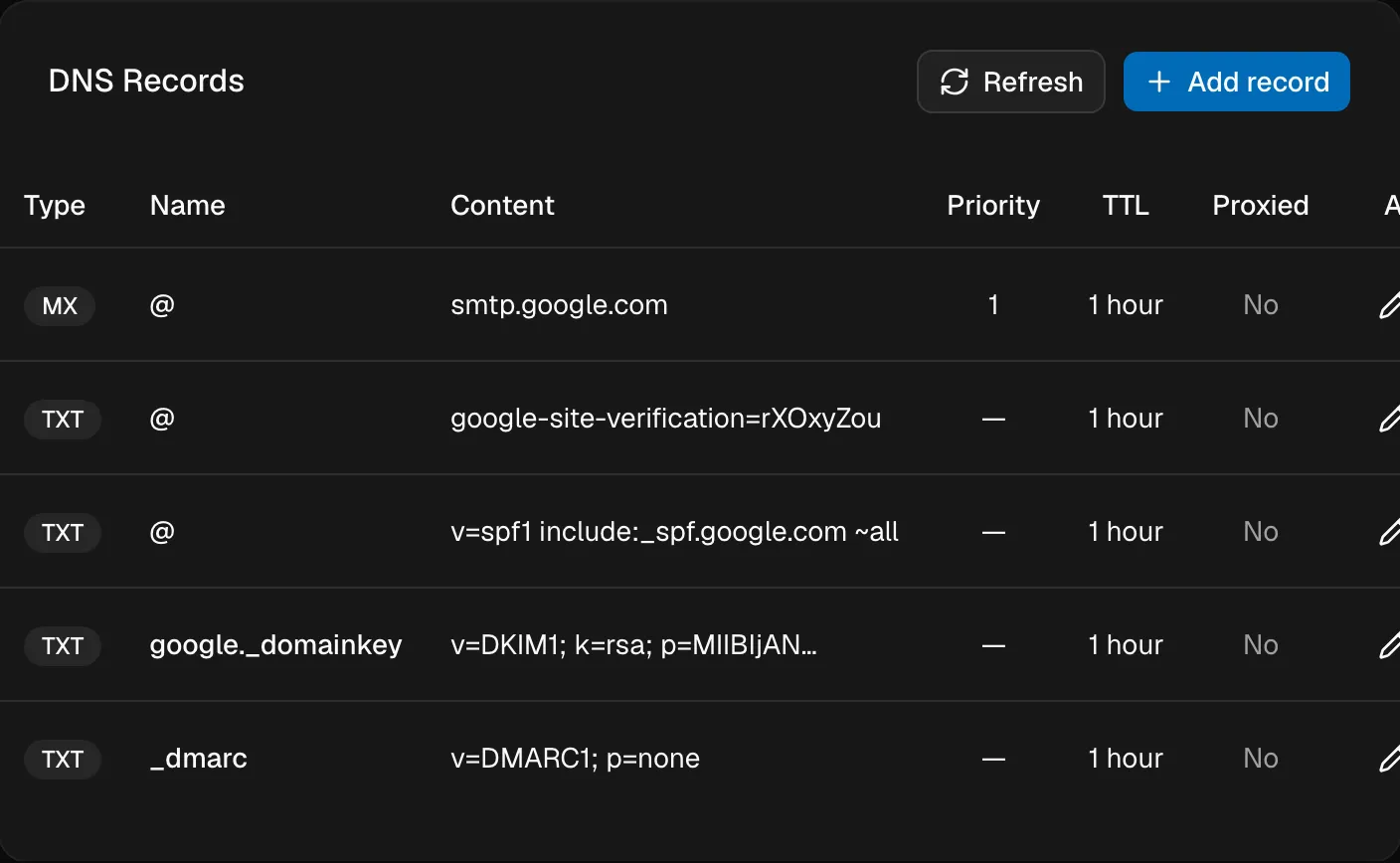
When you're done, your DNS Records card looks something like this:
5. Create mailboxes, aliases and forwarding
Mailboxes, aliases like sales@, forwarding to another inbox, and out-of-office replies are all set up in your email provider's admin console. Their help pages have the exact steps.
If mail isn't arriving
- Check the MX record's content matches your provider exactly, and that no old MX records remain.
- Make sure the domain uses NG Domain DNS (the Nameservers card on the DNS tab shows NG Domain Nameservers). If it doesn't, the records you add here aren't used.
- Give new records up to an hour, or longer if you replaced a record with a long TTL.
- Use your provider's checker. Google, Microsoft and Zoho all have one that shows which records are missing.
Still stuck? Contact support with the domain name and your email provider.