My Domains
Sign in to your NG Domain dashboard and open My Domains from the sidebar. The table lists every domain you own:
| Column | What it shows |
|---|---|
| Domain | The domain name. Click it to manage the domain. |
| Status | The domain's status, for example active. |
| Expires | When the current term ends. Click the heading to sort by it. |
| Auto-renew | On if we'll renew it automatically before it expires, Off if not. |
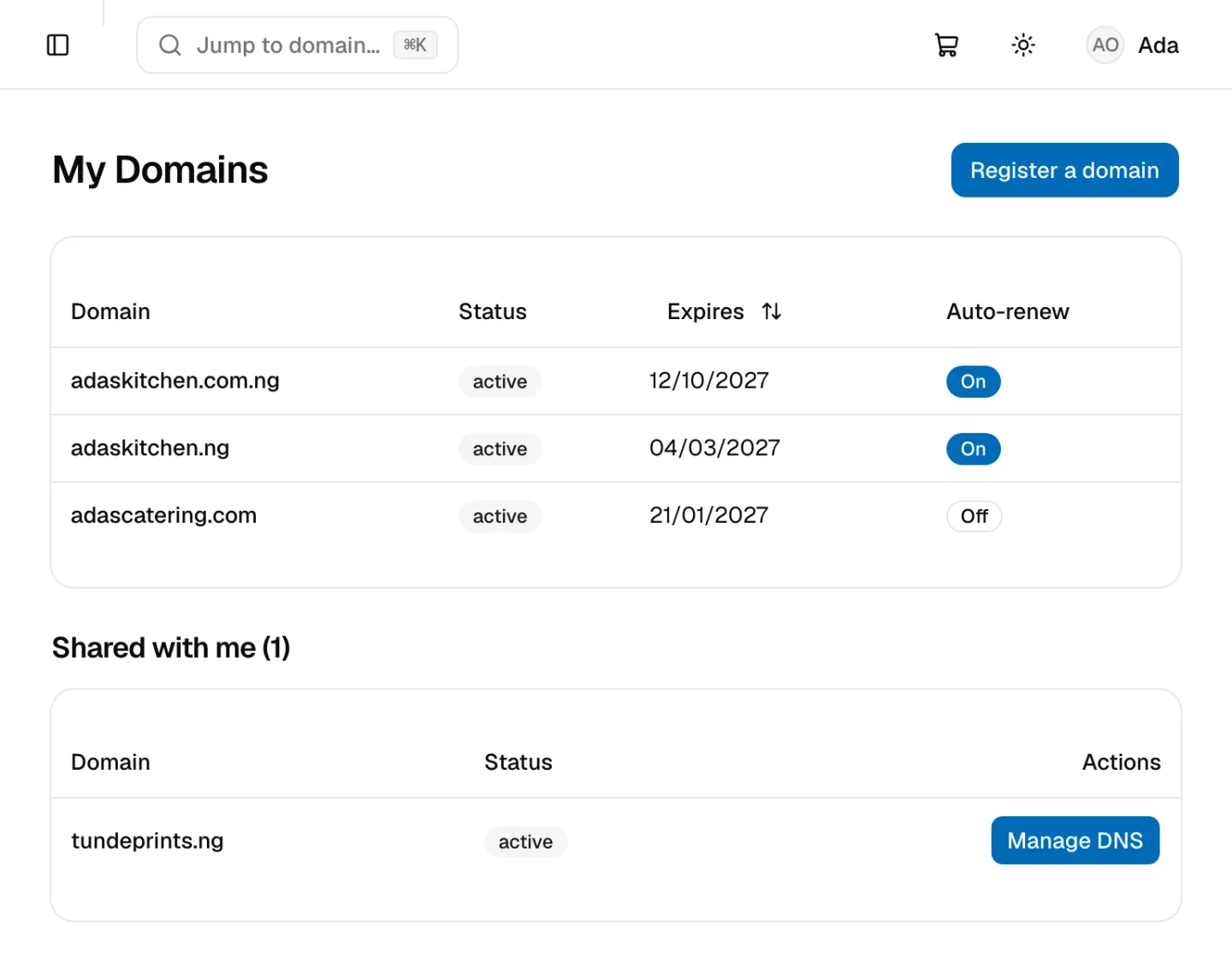
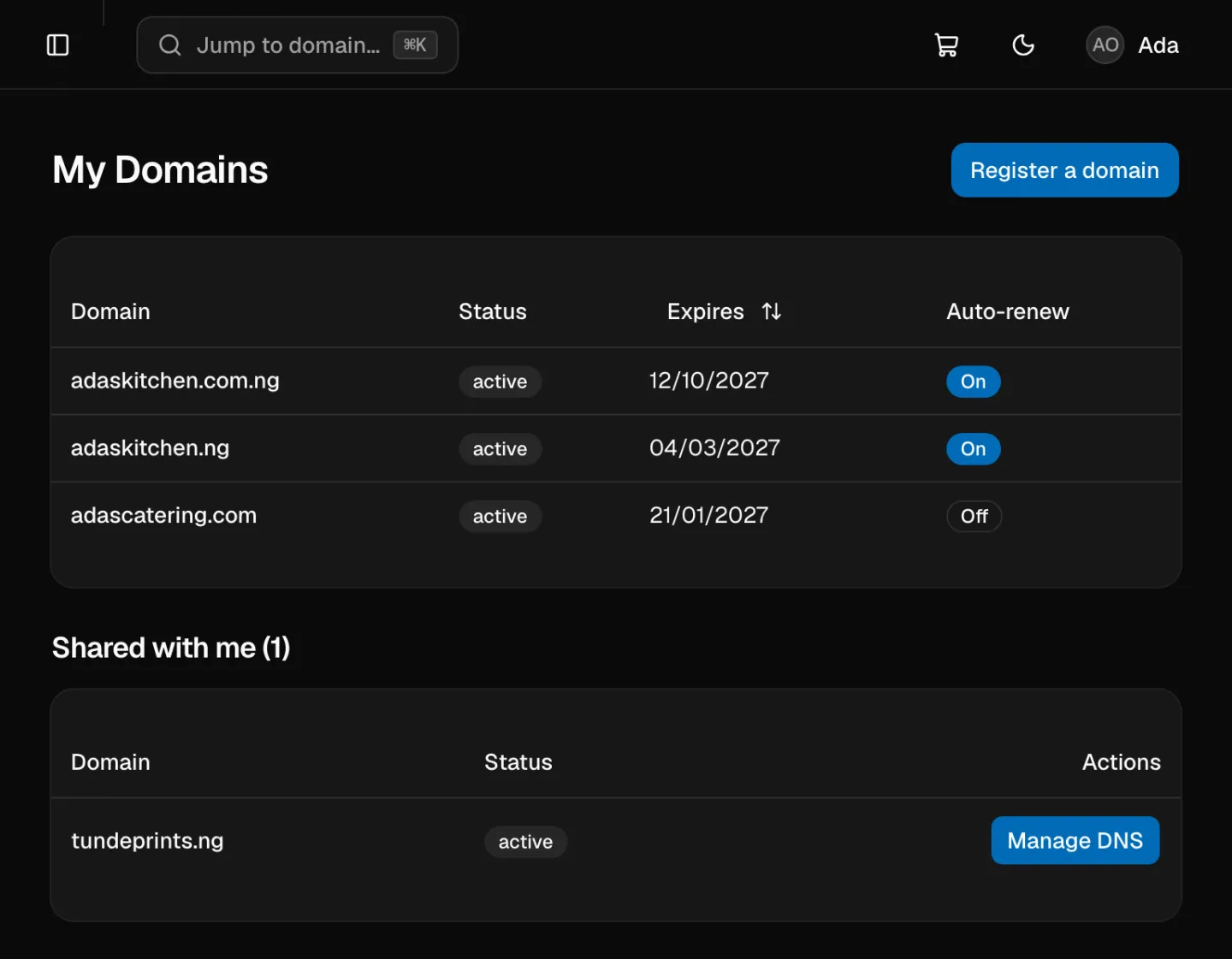
Shared with me lists domains other people have given you developer access to. Click Manage DNS to work on one.
Your Dashboard also shows your first five domains with their expiry dates, and your most recent activity.
Jump straight to a domain
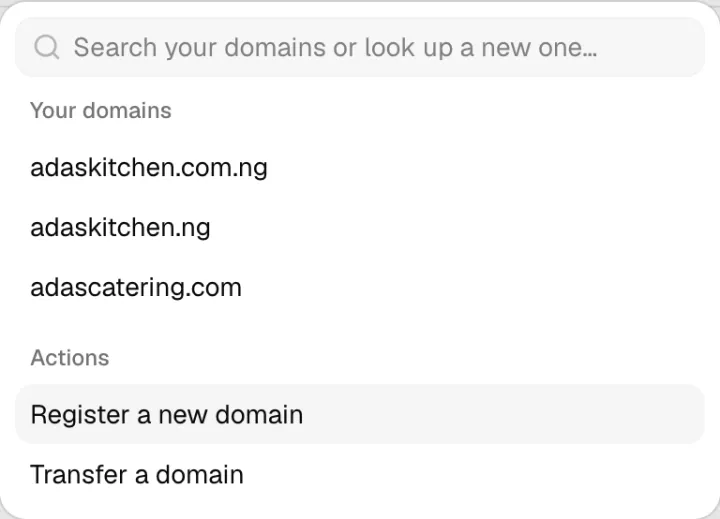
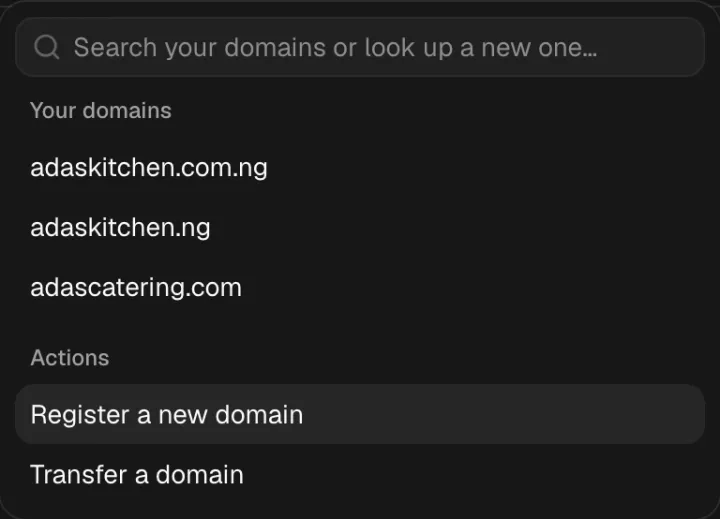
Press ⌘K (or Ctrl+K on Windows), or click Jump to domain… at the top of any page. Start typing to filter your domains, and press Enter to open one. The same box has shortcuts to register or transfer a domain.
The domain page
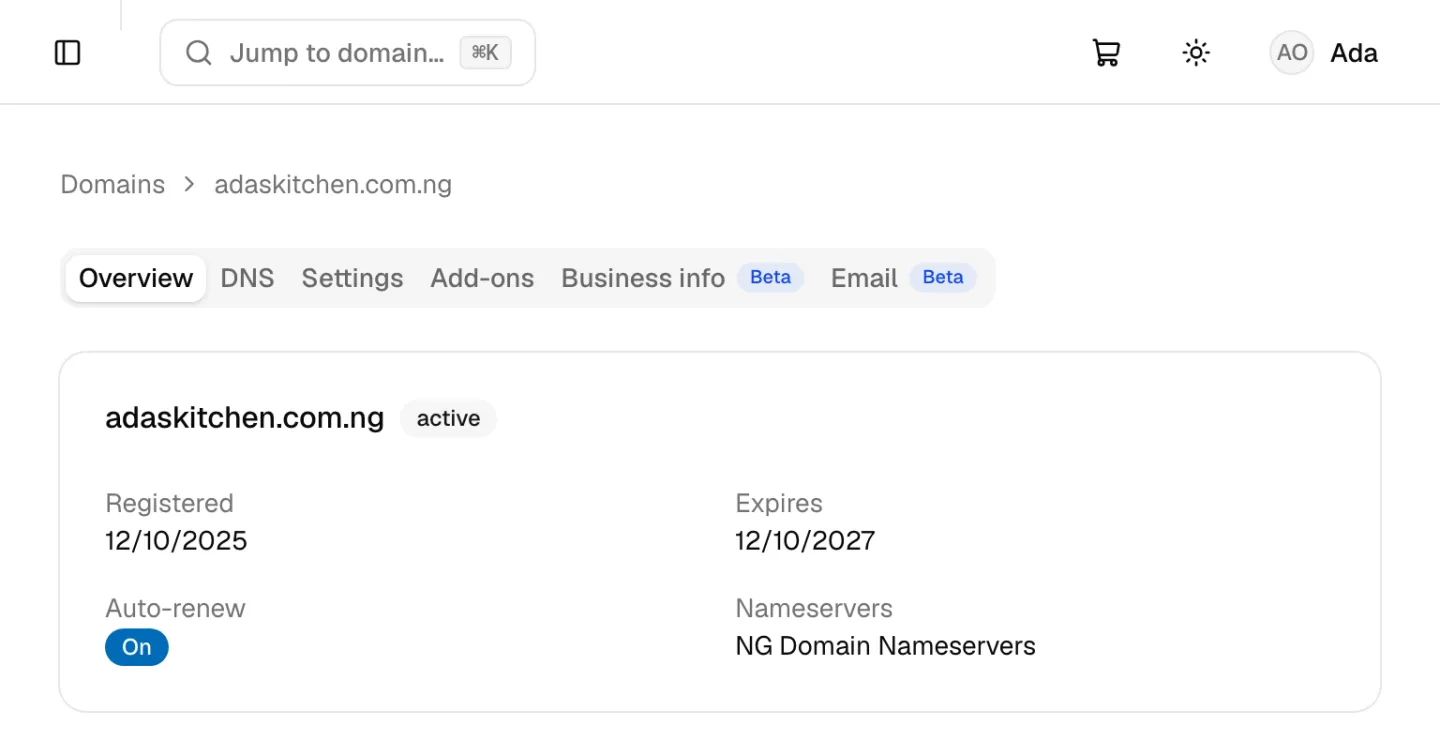
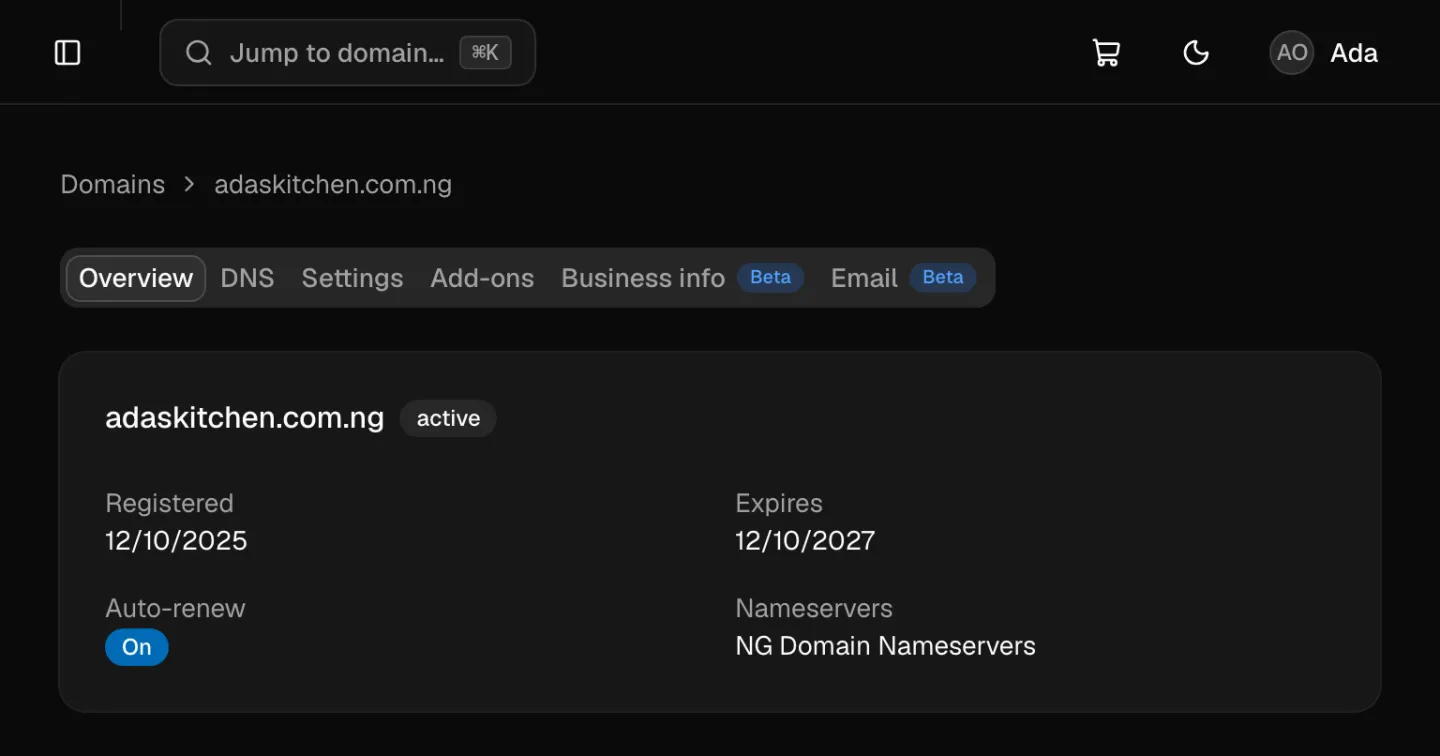
Click a domain to open its page. The tabs along the top hold everything you can change:
| Tab | What it's for | Guide |
|---|---|---|
| Overview | Registration and expiry dates, auto-renew and current nameservers, at a glance | This page |
| DNS | Choose who answers DNS for the domain (Nameservers), and point it at your website and email (DNS Records) | Changing Nameservers, Managing DNS Records |
| Settings | The domain's contact address, auto-renew, the auth code and developer access | Your Profile and Contact Address, Renewals and Expiry, Transferring Your Domain, Sharing Access to Your Domain |
| Add-ons | WHOIS privacy, DNSSEC and professional setup | WHOIS Privacy, Turning On DNSSEC |
| Business info (Beta) | The details on the domain's free Welcome page | Welcome page |
| Email (Beta) | Business email mailboxes on the domain | Getting Started with Business Email |
If you open a domain shared with you, you only see the DNS and Email tabs. A note at the top explains what's limited to the owner.
Common tasks
- Launch a website: add the A or CNAME record your host gives you on the DNS tab, or switch to your host's nameservers there.
- Set up email: add your email provider's MX and TXT records. See Connecting Your Domain to Email.
- Hide your details from WHOIS: check that WHOIS privacy is on in the Add-ons tab.
- Stop it renewing: switch off auto-renew in the Settings tab.
- Move it to another registrar: get the auth code from the Settings tab.
- Let your developer help: grant developer access on the Settings tab, rather than sharing your login.
Every change you make is recorded in your Activity Log.
If you need a hand, contact support and include the domain name.