
Search for a name
- Open Register a Domain from the sidebar, or use the search box on your dashboard. You don't need to be signed in to search.
- Type the name you want, for example
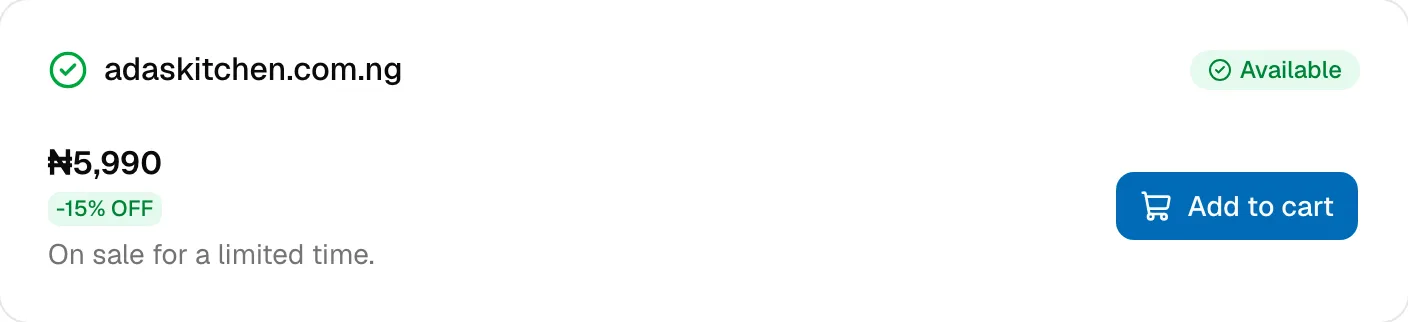
adaskitchen.com.ng, and click Search. If you type a name without an extension, we search for it with.ng. You can also paste a web address or an email address, and we search for its domain.
The result card shows the name, its price per year and one of these badges:
| Badge | What it means | What you can do |
|---|---|---|
| Available | Nobody has registered it. | Add to cart |
| Premium | Available, but priced for its brand value, usually because it's short or a common word. | Add to cart at the price shown |
| Taken | Someone already owns it. | Transfer it, make an offer or backorder it. See Concierge and Backorder. |
A sale price shows its discount, for example -15% OFF, with On sale for a limited time. If we couldn't check a name, the card says so; try again in a moment.
Choose your add-ons
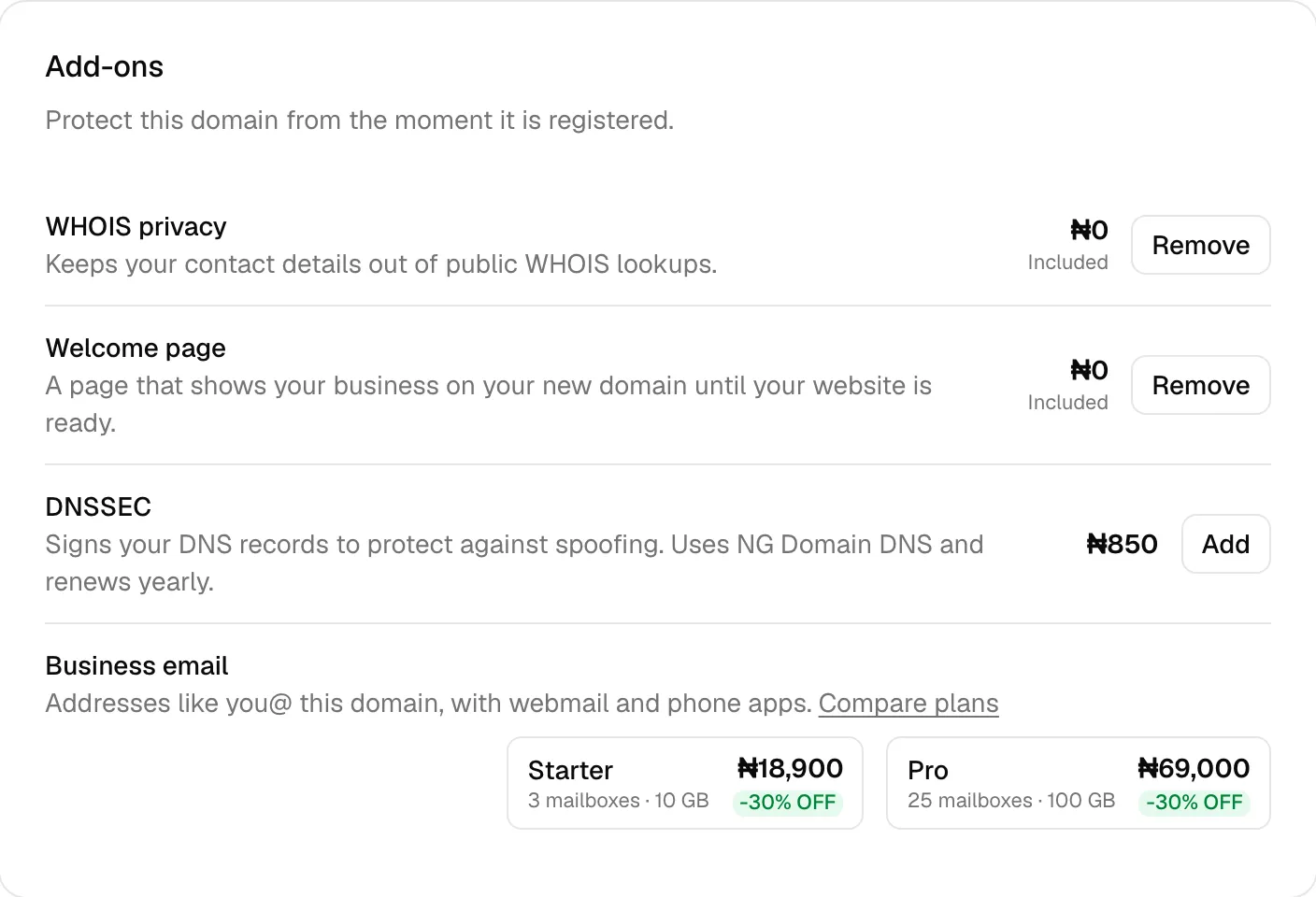
Once the name is in your cart, its button changes to Checkout and an Add-ons card opens below it:
- WHOIS privacy is included at no cost and is on by default. It keeps your name, address, email and phone number out of public lookups. Click Remove if you want your details public. See WHOIS Privacy.
- Welcome page is included at no cost and is on by default. It shows your business on the new domain until your website is ready. Click Remove if you don't want it.
- DNSSEC is a paid yearly add-on that signs your DNS records. Click Add to include it. See Turning On DNSSEC.
- Business email offers addresses like
you@your domain, on the Starter or Pro plan.
Compare other extensions
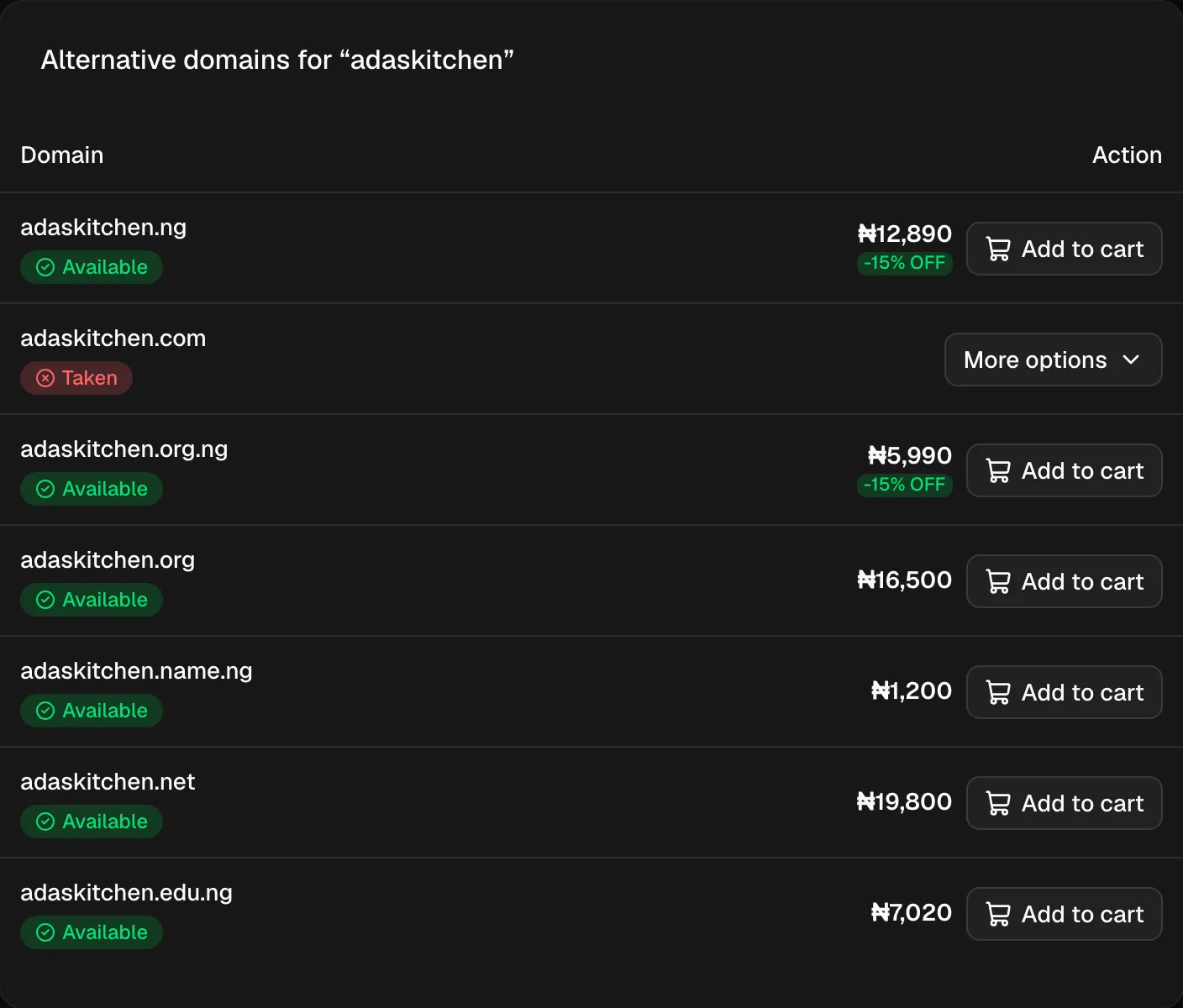
Below the result, Alternative domains checks the same name against up to 12 popular extensions, with the .ng family first. Each row shows its own badge and price. Click Add to cart on a row to add it, or More options on a taken one to see how you can still get it.
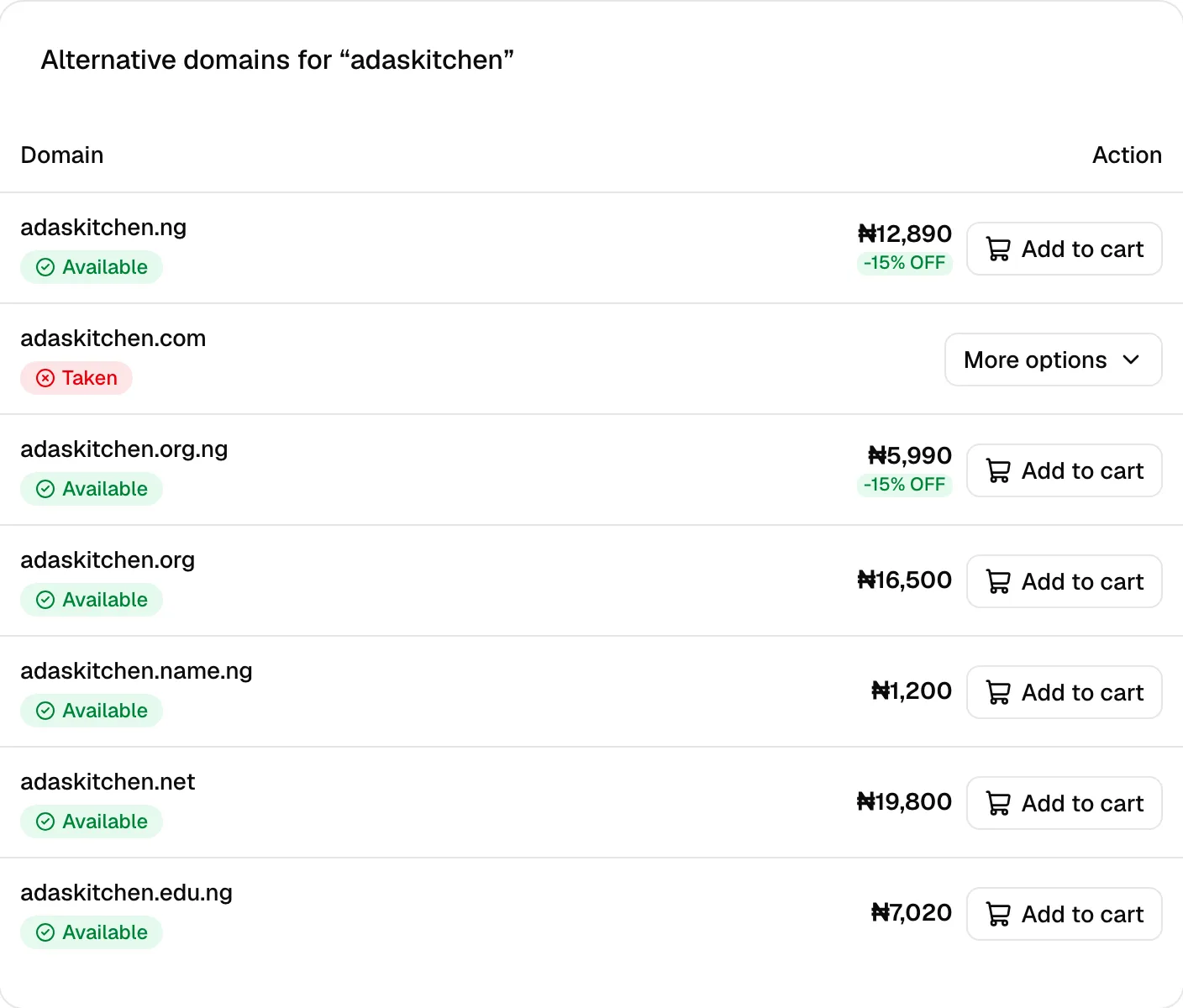
Not sure which extension to pick? See Choosing a Domain Extension.
Check out
Click Checkout on the result, or the cart icon at the top of the dashboard. Checkout has three steps.
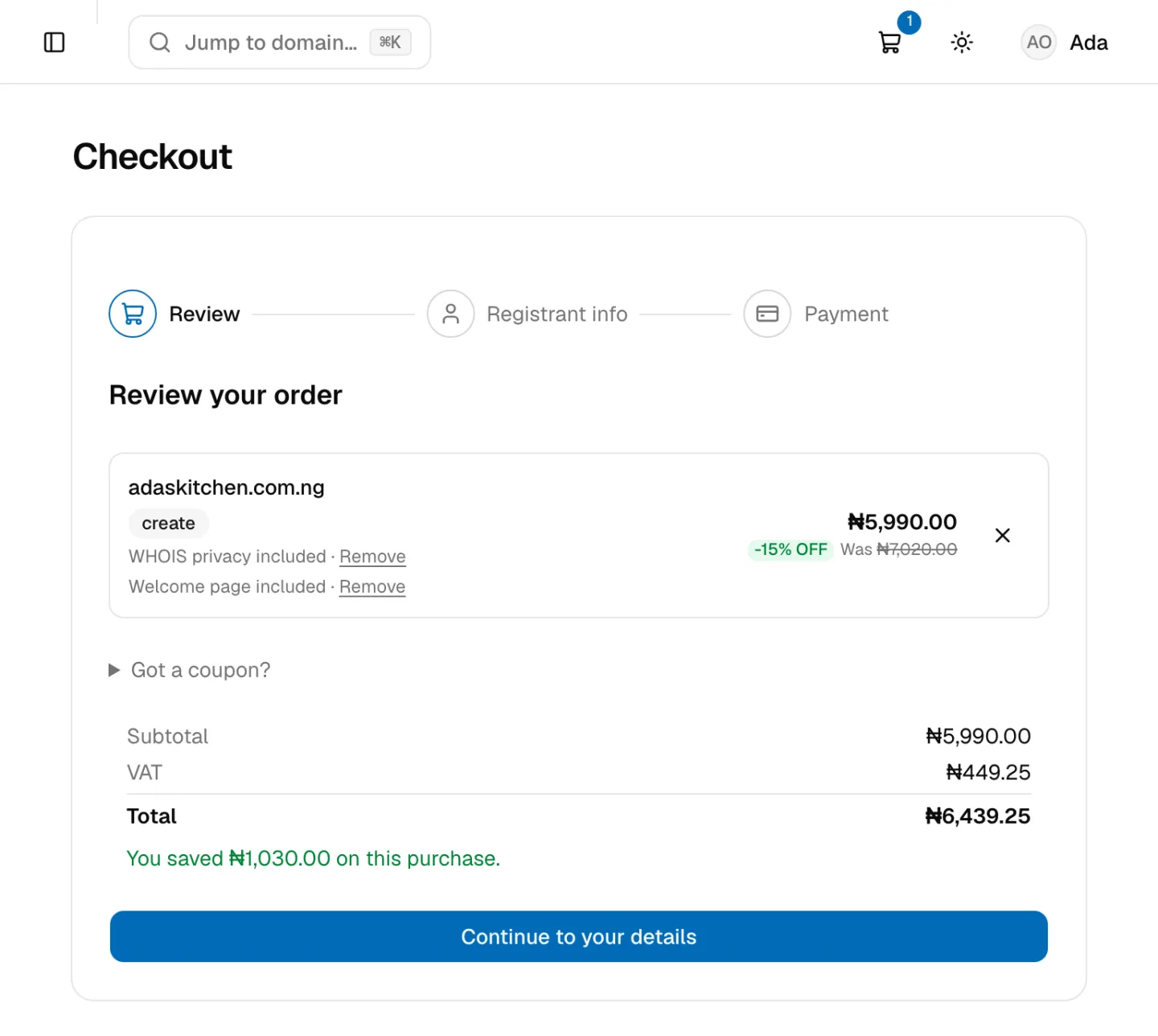
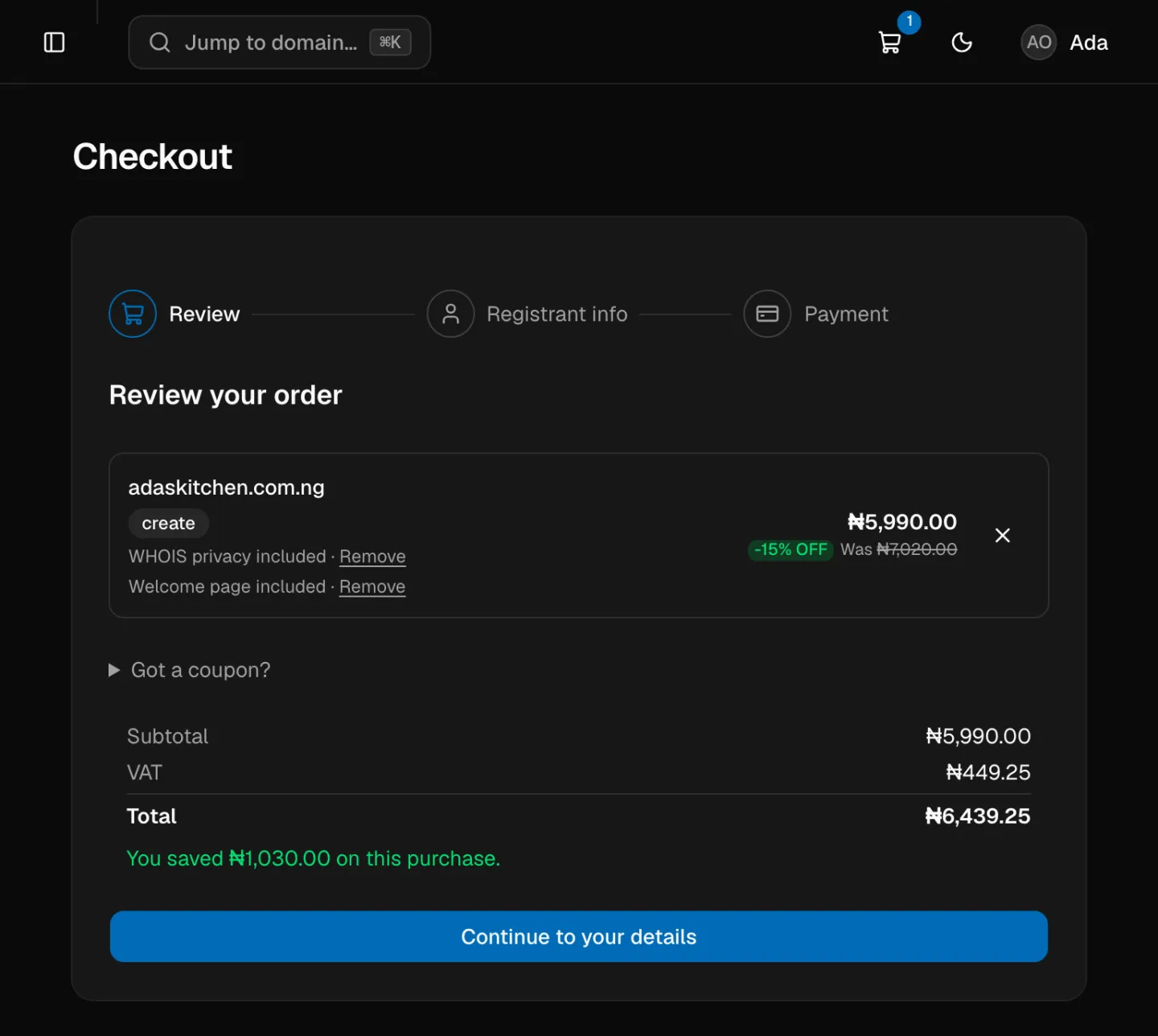
1. Review. Check each item and the totals: Subtotal, VAT (7.5%) and Total, plus how much any sale price saves you. Each registration is for one year and renews yearly. New registrations show whether WHOIS privacy and the Welcome page are included, with a link to remove each or add it back. Have a coupon? Click Got a coupon? to apply it. Click Continue to your details.
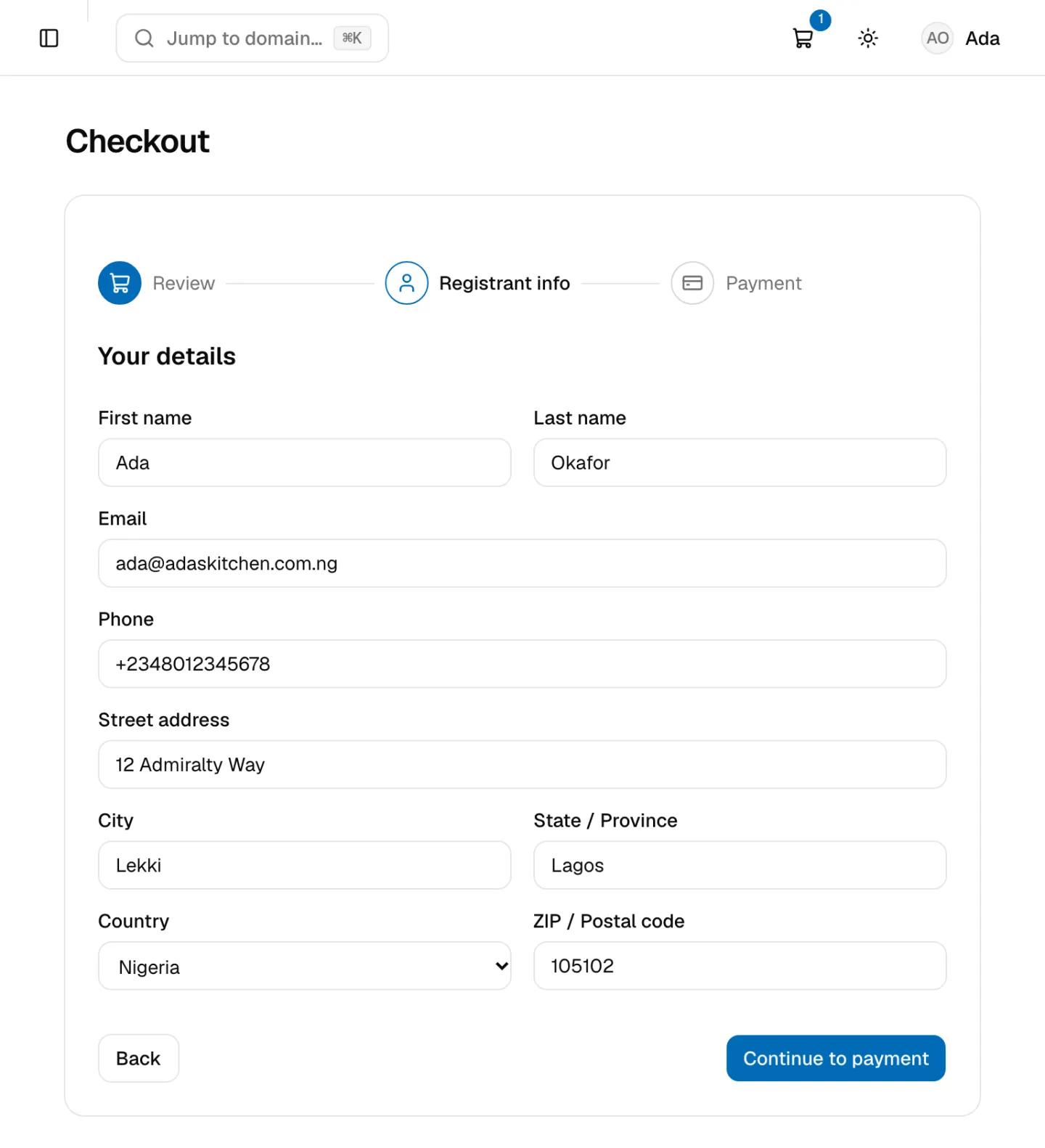
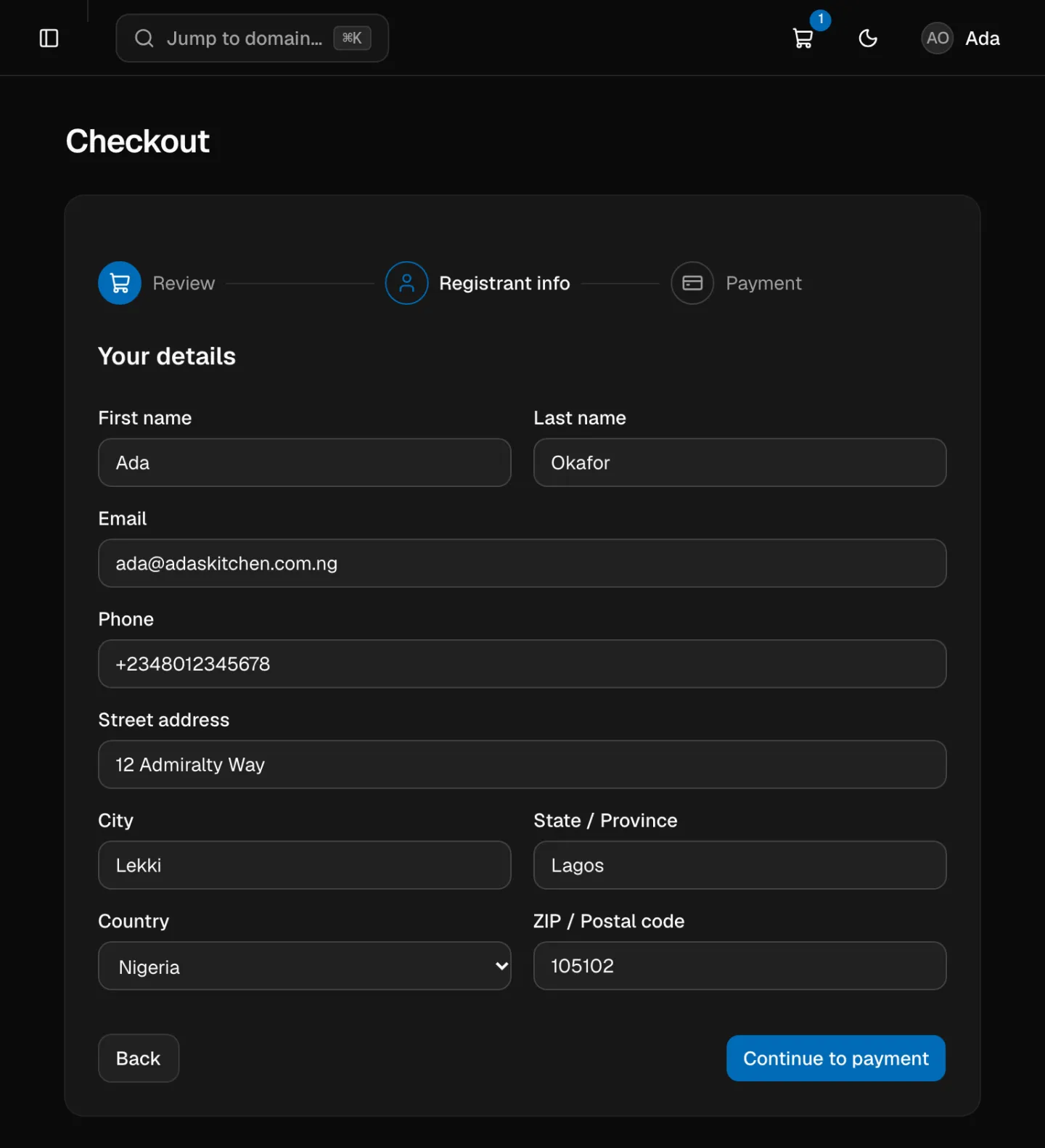
2. Registrant info. These are the registrant details for the domain: First name, Last name, Email, Phone, Street address, City, State / Province, Country and ZIP / Postal code. If you're signed in, they're filled in from your profile, and any changes you make are saved back to it. Enter the phone number in international format, for example +2348012345678. Click Continue to payment.
If you're not signed in, a Verify your email step follows. Enter the code we email you and click Verify & continue. This creates your account, or signs you in if you already have one.
3. Payment. Check the order summary, then click Pay to open the secure payment window, and pay there. Paying means you accept the NG Domain terms and NiRA's registrant agreement. See Payments, Receipts and Refunds.
One order can hold up to 5 domains, 10 add-ons and 5 services.
After you pay
You'll see Payment successful! with your payment reference, and we email you an order confirmation. It can take from a few minutes to a few hours for a new domain to be ready. It then appears under My Domains with Auto-renew on.
Next steps:
- Point it at your website with DNS records, or use your host's nameservers.
- Connect it to an email provider.
- Check the renewal settings.
If a domain hasn't appeared within 24 hours, contact support with your payment reference.